
When I started working in Linux, editing files, for instance, seemed simple enough until I realized there were about a dozen different ways to do it. Between terminals, editors, and cryptic commands, I remember asking myself, “Why does something as basic as editing a file feel like a hacker mission?” But once you understand why Linux gives you so many options, you start appreciating the flexibility it offers. You may be using Windows at core, but knowing 5 different ways to edit files in Linux is always a plus from a career standpoint.
In today’s post, we are going to check out why having multiple editing options matters, how many types of editors are available in Linux, 5 different ways to edit files in Linux, and choosing the Right Tool. Without further ado, let’s get started!
Why having multiple editing options matters

Here’s a truth you’ll eventually discover about Linux, no two environments are the same. Sometimes you’re on your personal Ubuntu, other times you’re SSH’d into a production server running a forked version of CentOS or Rocky Linux. One may have a fancy GUI with VS Code and mouse support, while the other barely has Vim or nano installed. So what happens when you log into a remote server and realize there’s no graphical editor? You panic for five seconds… and then remember you read this blog.
Having multiple editing options means you’re never stuck. You can always make changes—no matter the situation. Whether you’re editing /etc/fstab as root or just jotting a quick note in a text file, Linux has your back. Think of it like this, if one tool doesn’t work, another surely will. Flexibility is your best friend here.
How many types of editors are there in Linux?
Before diving into the five ways, it helps to know the broader categories. Linux editors generally fall into three main types as follows.
- Command-line editors: these run entirely in your terminal window (like nano, vi, or vim).
- Graphical editors: the ones with menus and mouse support (like Gedit, Kate, or VS Code).
- Non-interactive or automated editors, like sed, is used in scripts to make changes automatically.
Each has its place. Command-line tools shine on servers and automation; GUI editors are perfect for desktop users and developers who prefer a visual interface. Knowing when to use which is half the game.
5 different ways to edit files in Linux
1. Nano
If you’re new to Linux, you should try vi editor instead, but Nano is worth knowing for sure.
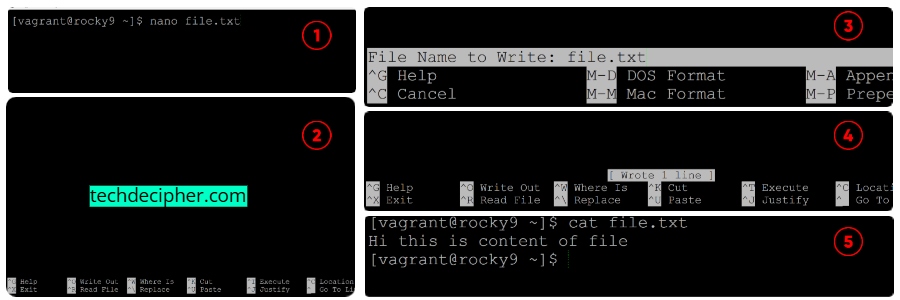
1. Install Nano Based on Your Linux Distro
Ubuntu / Debian:
- sudo apt install nano -y
CentOS / RHEL / Rocky / AlmaLinux:
- sudo yum install nano -y
Fedora:
- sudo dnf install nano -y
2. Open or Create a File
- nano file.txt
- If file.txt exists → it opens for editing.
- If not → Nano creates it automatically.
3. Move Around
- Use arrow keys (← ↑ ↓ →) to move the cursor.
- Use Page Up/Page Down to scroll through large files.
4. Edit the File
- Just start typing — text appears directly where the cursor is.
- You can delete with Backspace or Delete, and insert new lines with Enter.
5. Save Your Work
Press:
- Ctrl + O
Then press Enter to confirm the filename.
This writes (saves) your changes to disk.
6. Exit Nano
Press:
- Ctrl + X
- If you haven’t saved, it will ask:
- Save modified buffer (ANSWERING “No” WILL DESTROY CHANGES)?
- Type Y for Yes, or N for No, then Enter.
7. Other Useful Shortcuts
- Cut line Ctrl + K
- Paste line Ctrl + U
- Search text Ctrl + W
- Go to line number Ctrl + _
- Undo Alt + U
- Redo Alt + E
2. Vim
Ah, Vim, the editor that either makes you fall in love or want to throw your keyboard.
It’s intimidating at first, I won’t lie. But once you get used to it, Vim feels like a superpower. It’s lightning fast, works on practically every system, and can do things most modern editors can’t dream of.
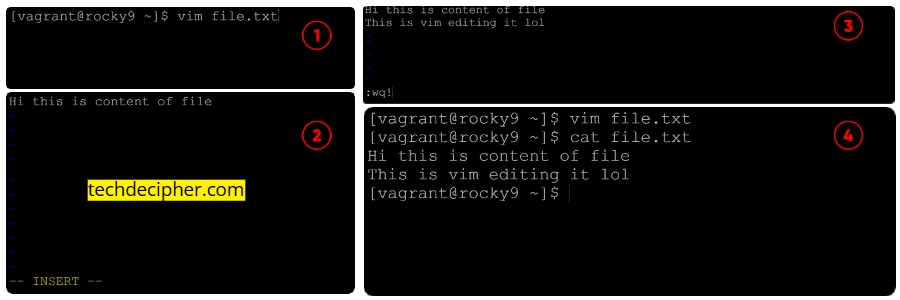
1. Install Nano Based on Your Linux Distro
- sudo apt install vim -y
- sudo yum install vim -y
- sudo dnf install vim -y
2. Open or Create a File
- vim file.txt
If file.txt exists → opens it for editing.
If not → creates it automatically.
3. Move Around
Use arrow keys or:
- h → left
- j → down
- k → up
- l → right
Use Ctrl + f / Ctrl + b for page forward/backward.
4. Edit the File
Vim starts in command mode, so you can’t type text yet.
To start editing:
- i → Enters insert mode (you’ll see — INSERT — at the bottom).
Now you can type, delete, and move with the arrow keys.
When done editing, press:
- Esc → returns to command mode.
5. Save Your Work
In command mode (after pressing Esc):
- :w → saves the file (writes changes).
6. Exit Vim
In command mode:
- Save and exit → :wq → Enter
- Exit without saving → :q! → Enter
- Save only → :w → Enter
7. Other Useful Shortcuts
- Undo last change u
- Redo undone change Ctrl + r
- Delete line dd
- Copy line yy
- Paste line p
- Search text /text
- Go to line number :5 (for line 5)
3. Graphical Editors
If you’re working on a desktop Linux distro, graphical editors like Gedit, Kate, or VS Code make life easier.
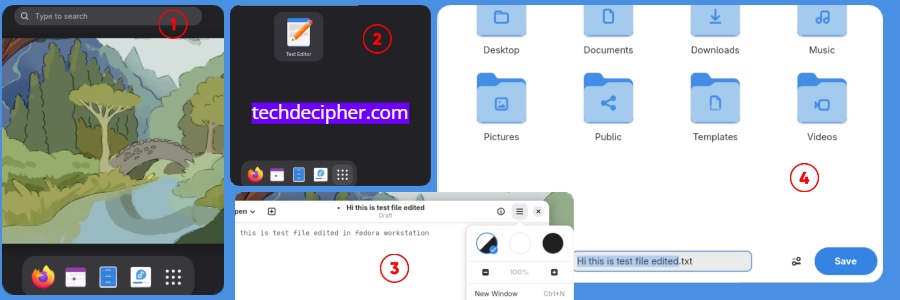
4. Echo and Redirection
Let’s say you don’t even want to open an editor. Maybe you’re just updating a single line or creating a small file. In that case, you can use a simple trick with echo and redirection (> or >>).
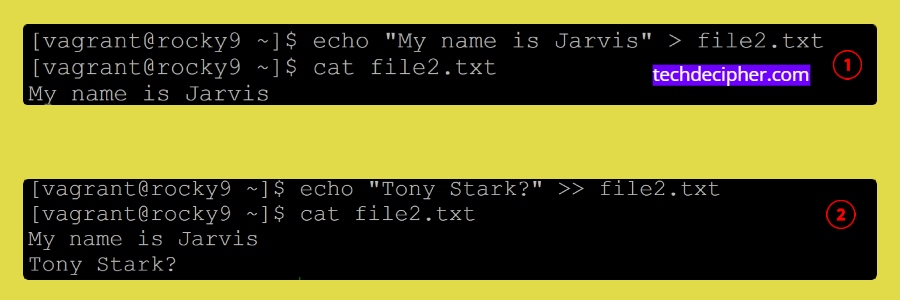
For example, let’s say you want to replace the entire content of a file:
- echo “Hello Linux world!” > file.txt
That command overwrites whatever was inside file.txt with your new line. If you want to add a line instead of replacing it, use double greater-than (>>):
- echo “Another line here.” >> file.txt
Pro tip:
If you want to add multiple lines, you can use a here document:
- cat <<EOF > notes.txt
- Line one
- Line two
- Line three
- EOF
That’s one of those “Linux feels like magic” moments.
5. Sed
These are the “set-it-and-forget-it” tools. They don’t open files in the traditional sense; they manipulate text automatically.
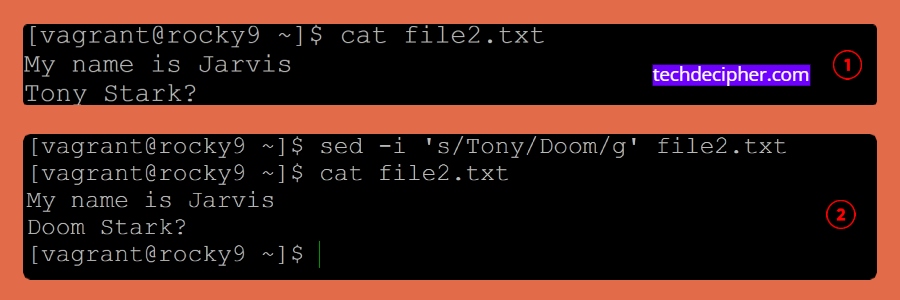
Let’s say you want to replace “foo” with “bar” in a file:
- sed -i ‘s/foo/bar/g’ file.txt
Done. No editor, no window, just instant modification.
These tools are gold for automation, batch changes, or CI/CD pipelines. I use sed in shell scripts all the time to update config values on the fly.
Choosing the Right Tool
Conclusion
Editing files in Linux isn’t just a task, it’s an art form. Once you understand the ecosystem, you realize it’s not about how you edit files, but how efficiently you do it. Each tool has its personality. The magic of Linux is that you get to choose which one suits you best. This concludes 5 different ways to edit files in Linux. Which file editing tool will you be using when working in a Linux environment? Do let us know in the comments section below. Just saying, do you wonder about switching from your Windows machine to a Linux alternative?, Check the blog here for more. If you need any help or have any suggestions to make, then do reach out via the contact page here. I also provide services to help you with your issues, which you can find here. Happy Diwali!
