
If you have ever built a small website, maybe a personal portfolio, a resume page, or even a fun side project, and then stared wondering, Okay… how do I actually put this online? You are not alone. Basically, we need to host those pages on a machine. I looked at shared hosting, VPS options, and WordPress plans, and it felt a bit complicated to start with, specifically for those who are not familiar with control panels. That is when I discovered Amazon S3. If you are the one who is struggling to figure out the best alternative, then how to host a website in S3 blog is for you!
In today’s post, we are going to check out what S3 is, why choose S3 for hosting a website, how to host in S3, what it costs, and if it is secure enough for your website. Without further ado, let’s get started!
What is S3

Amazon S3 stands for Simple Storage Service. At its core, it’s a cloud storage service by AWS where you can store files, images, videos, PDFs, backups, logs, and just about anything else. But here’s the interesting part S3 can also act as a static website host. That means it can serve:
- HTML files
- CSS stylesheets
- JavaScript files
- Images and fonts
- Static frameworks like React, Vue, or Angular build
What it can’t do is run server side code like PHP, Python, or Node.js. So no databases, no backend logic, just pure frontend. S3 isn’t a traditional web server. There’s no Apache, no Nginx, no backend runtime. Instead, S3 serves files directly over HTTP. That’s why it works perfectly for static websites. If your website consists of HTML, CSS, JavaScript, Images or fonts, then S3 can host it effortlessly. And since S3 lives inside Amazon Web Services, it inherits AWS’s reliability, scalability, and global infrastructure.
Why S3 for hosting a website?
You’ve probably seen a hundred hosting options by now. So why even consider S3? Here’s why many developers end up loving it.
- Traditional hosting locks you into monthly plans. S3 doesn’t. You pay only for how much data you store in AWS.
- Whether 5 people visit your site or 50,000 people do, but S3 doesn’t blink. No upgrades, no server tuning, no panic.
- No OS updates. No patching. No security hardening.
- No downtime because your VPS ran out of memory.
- You upload files. AWS handles the rest.
- Amazon S3 is designed for 99.999999999% durability. That’s not marketing, that’s real engineering.
- The best of all is that it’s shockingly cheap. We will talk numbers later, but most personal or small business sites cost less than a cup of coffee per month to host on S3.
These are a few reasons why S3 is still a good place for your static sites!
How to host a website in S3
Step 1) Create an S3 Bucket
Now we have to create an S3 bucket so we can put the files of our static website. For this, we will do the following.
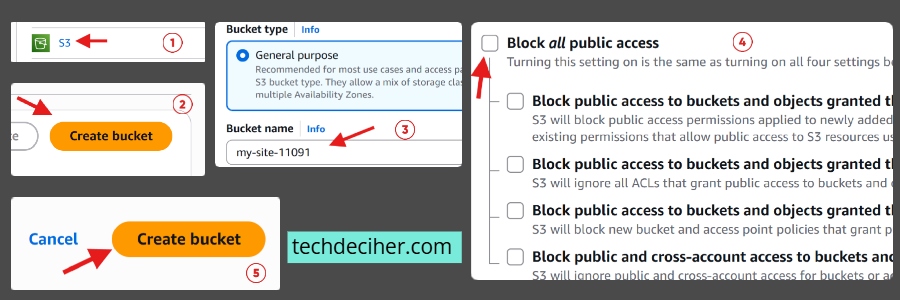
Log in to the AWS Console > Go to S3n > Click Create bucket > Give it a unique name (S3 bucket names are global) > Choose a region close to your audience > Uncheck Block all public access > Click Create bucket
For now, we are going to uncheck the block all public access, don’t worry, we will secure it properly.
Step 2) Upload Your Website Files
Open your bucket, which we created in step 1,> click upload files > and upload your website files.
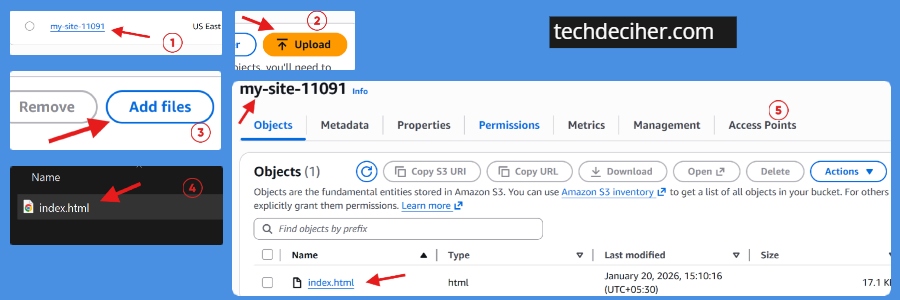
Now comes the part where we need to upload the files of our website. It is very important to keep the folder structure clean. For example If your HTML references /css/style.css, then that file better exist there, without it the file will not be found and get an error.
Step 3) Enable Static Website Hosting
Go to your bucket > Click Properties > Scroll to Static website hosting > Enable it > Choose Host a static website >Set your index page > Index document >index.html
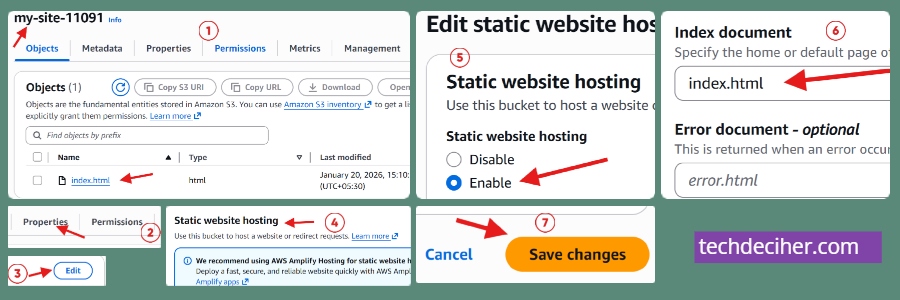
In this step, we basically need to enable the static website hosting feature, which tells S3 that this bucket is a website.
Step 4) Create Hosted Zone in Route53
AWS Console > Route 53 > Hosted Zone > enter your domain name > Type : public hosted zones > Create Hosted Zone >
Once the Hosted zones are created, you would need to add the 4 NS records that appear as NS records right after you create the hosted zone. You note them and visit your domain provider’s DNS section and put them under the NS records. This way, your domain, which you purchased from other providers, can be managed in Route53. If you are not sure how to put them, just contact the platform you purchased your domain from.
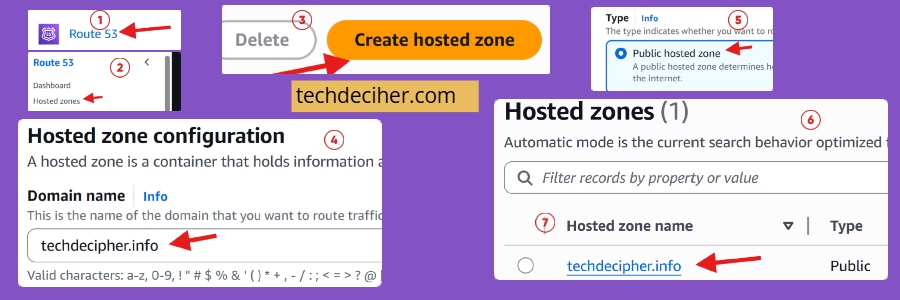
Here we are creating hosted zones to manage the DNS of your domain. There is 100% chance that you likely have purchased the domain from other domain providers, and with a hosted zone, we are ensuing it’s DNS can be managed on the AWS Route 53 service.
Step 5) Create SSL\TLS certificate in ACL
AWS Console > AWS Certificate Manager > Request > Certificate type: Request a public certificate > Enter domain name > Leave rest options as it is > click Request > Once you create the request > you get the option to validate the request using the DNS method, for which you get cname record to validate. All you need to do is click on Create Record in Route 53, after making changes, allow 20 to 30 minutes, and we are done with this step.
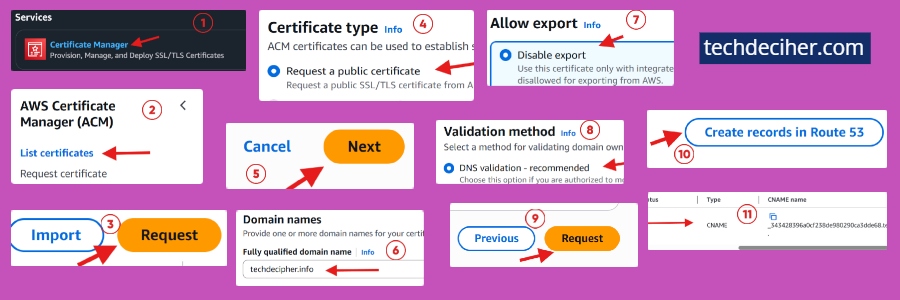
When you load your website, you would like to ensure the website loads with https protocol, which gives a secure padlock icon as well as assurance that the site you are visiting or others who are going to visit is a secure one. If you want to know more about it, click here.
Step 6) Create CloudFront Distribution
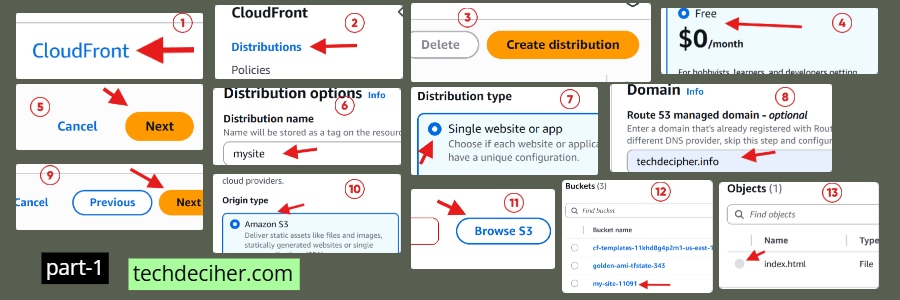
AWS Console > CloudFront > Create Distribution > pick the 0$ per month plan > Next > Give Distribution name > Distribution type: Single website or app > Domain: the same domain we used in ACM and Route 53. > Next > In Specify origin > Origin: Amazon S3 > under Origin > S3 Origin: browse bucket > rest leave everything as it is and click Next > on next stage Enable security > click on Web Application Firewall (WAF) and leave everything as it is as well click Next > Create Distribution >
Once the CloudFront Distribution is created > Under General > click Edit > Default root object: index.html > Save changes
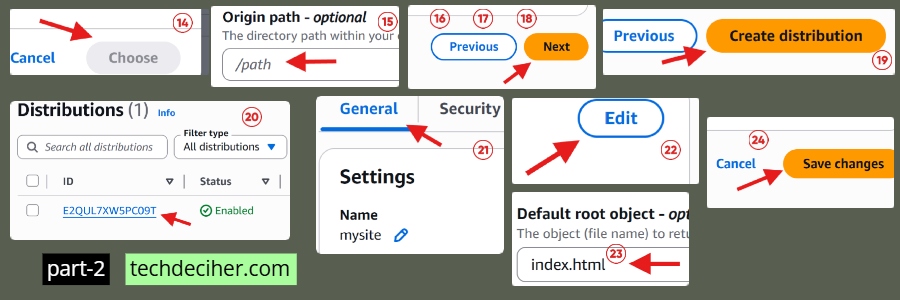
We use this service because an SSL certificate comes free with CloudFront, and it also helps us deliver content quickly. We could use the S3 access URI with Route 53 however, since we want our site to be secure, we are using CloudFront.
Step 7) Create A record in Route53
Go to Route 53 → Hosted zones → your-domain-name > Create Record > Record name: leave blank > Record type: Type A record > Enable Alias > Route traffic to: pick Alias to CloudFront Distribution > post this, we need to select the CloudFront Distribution we created on Step 6 > leave everything as it is > Create Record >
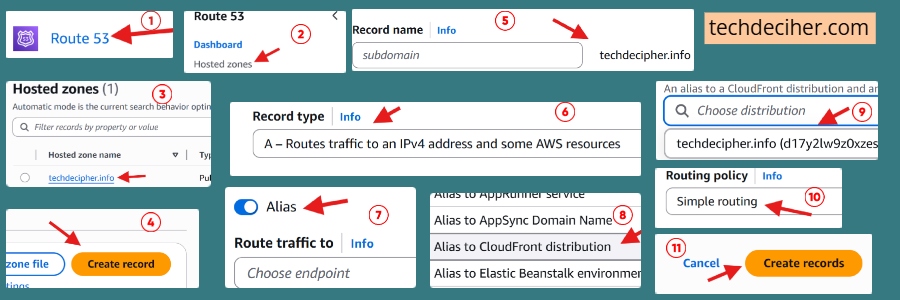
So in this, basically, what we are doing is we are mapping the Route 53 domain with CloudFront distribution, through an A record. The users will search the domain, it goes to Route 53, and through an A record, it reached cloudfront, which then has the link to your S3 bucket that has the set of files of your website.
Step 8) Validate the site
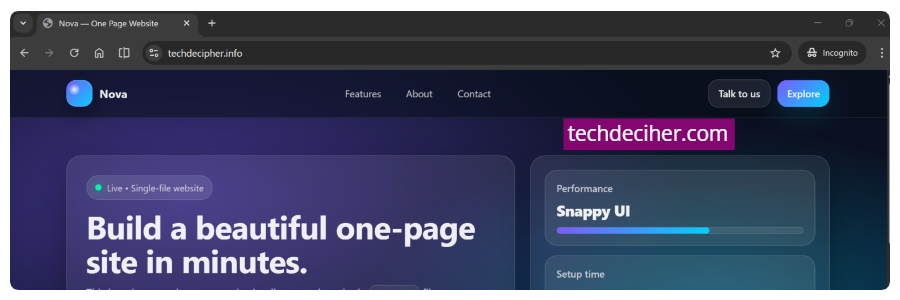
We completed all the steps, and it’s about the time you test the domain name. Just hit the domain name, and you would see the site loading in your browser, that’s about it. You have a live website all through S3.
What is the cost involved?
Let’s talk money because AWS pricing scares people for no reason.
For a small-to-medium static website
- Storage: A few cents per GB per month
- Requests: Pennies unless you’re getting massive traffic
- Bandwidth: Usually under a dollar for modest sites
- CloudFront: Often still under $1–$5/month
In practice, most S3-hosted websites cost $0.50 to $3 per month. Yes, really. The first time I saw my bill, In real life, a personal site cost less than a cup of coffee per month.
Is Hosting a Website in S3 Secure?
Yes, hosting a website in S3 is secure, and in many cases, it’s actually more secure than traditional shared hosting, as long as it’s configured correctly. By design, Amazon S3 doesn’t run an operating system, doesn’t execute server side code, and doesn’t expose a traditional server surface. That alone removes an entire category of vulnerabilities like OS exploits, outdated software, or mispatched services. When your website is static, S3 is simply serving files, nothing more, and that’s a big security advantage. When you place CloudFront in front of S3, security improves even further.
You get HTTPS by default using a free SSL certificate, protection against common network attacks, and the option to add AWS Web Application Firewall (WAF) if needed. This setup ensures data is encrypted in transit and visitors see the trusted padlock icon in their browser, which builds user confidence. In short, when S3 is paired with proper bucket policies, HTTPS via CloudFront, and basic AWS security best practices, it becomes a highly secure, production ready solution. For static websites, especially, it’s one of the cleanest and safest hosting approaches available today.
Conclusion
Hosting a website in S3 isn’t just a cool AWS trick. It’s one of the most practical and scalable ways to host a static site. S3 stores files → Route 53 handles DNS → ACM provides SSL → CloudFront delivers it fast + secure. And when it’s done? You’ve got a clean, professional website set up with minimal cost and almost zero maintenance. This concludes how to host a website in S3. Which hosting do you prefer to host your website, and why? Do let us know in the comments section below. If you are still looking to host a website on a hosting and have been wondering which one to choose, just click the link here. We have a collection of top class web tools baked right into Techdecipher.com. To go to the tools page, click here. If you need any help or have any suggestions to make, then do reach out via the contact page here. I also provide services to help you with your issues, which you can find here. Happy International Day of Education Day!
