
You’ve probably seen those sleek desk setups with dual monitors, a mechanical keyboard, and maybe even an LED strip that screams “I take my workspace seriously.” But here’s the thing, not everyone has the budget for a second monitor. That’s exactly where your smartphone steps in, quite literally, as your productivity sidekick. Whether you’re working remotely from a café or just want to avoid flipping between tabs, knowing how to use your smartphone as second monitor is a plus.
In today’s post, we are going to check out why to use smartphone as second monitor and how to use smartphone as second monitor. Without further ado, let’s get started!
Smartphone as Second Monitor, but why?
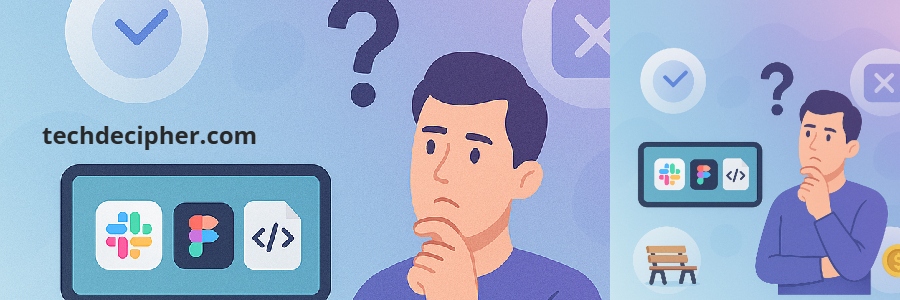
Before we dive into the details, let’s talk about why you’d even bother considering your smartphone as a second monitor. If you’re into coding or web design, a second screen can significantly boost your productivity. Imagine coding on your laptop screen and previewing your live updates simultaneously on your smartphone. Or maybe you’re attending a virtual meeting and want your main monitor for work, while chat or notes pop up neatly on your phone.
Here’s why turning your phone into a second monitor actually makes sense.
- Boosts Multitasking: Keep your main screen focused on work, while the phone shows Slack, Figma previews, code docs, or Zoom notes.
- Reduces Tab Fatigue: No more Alt-Tab Olympics.
- Portable Productivity: You can do this anywhere—even while working from a park bench.
- Budget-Friendly: It’s free or low-cost. No need for an extra monitor or adapter (well, maybe a USB cable).
How to use your smartphone as a second monitor
Step 1) Install and Set up Spacedesk on Windows
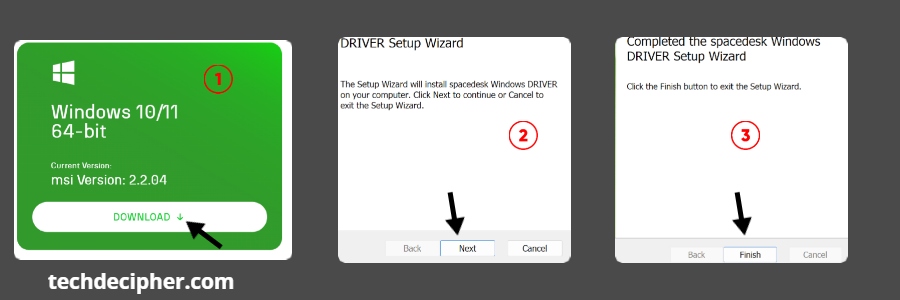
The first thing you would need to do is to install the SpaceDesk driver for Windows. For this, you can goto the link here and choose your OS according to your machine. Once the file is downloaded, you install it on your machine. This application/driver would be used as a bridge between your screensharing across your PC/Laptop and your Android Smartphone.
Step 2) Install Spacedesk on Android
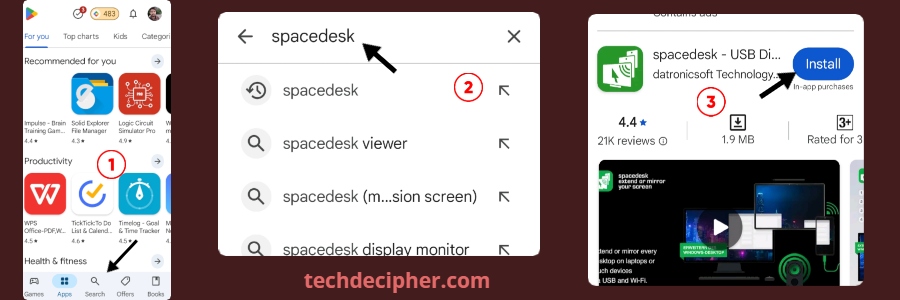
Now that you have installed SpaceDesk on your PC/Laptop, the next step is to install the same app on your Android Device. You can click on this link directly, or you can open your Google Play Store app and search with SpaceDesk and install it. This would behave as a receiver.
Step 3) Connect Your Devices
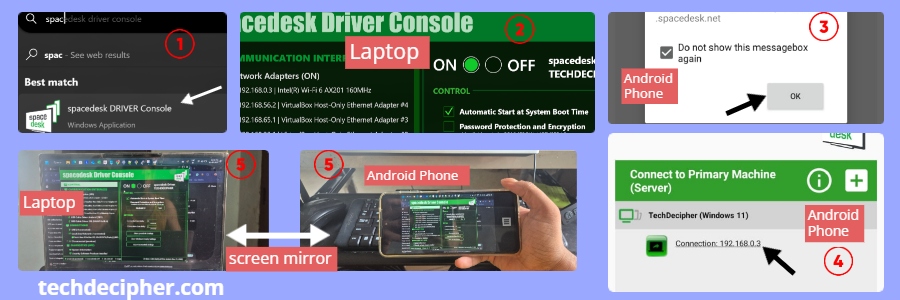
You have installed the necessary components for using your smartphone as a second monitor. First, open your SpaceDesk app on your Windows laptop or PC. Once you have that open, similarly, just open your SpaceDesk Android application that you installed recently. The good thing is, for connecting, you don’t have to struggle much. On your Android phone, you would see an entry of your Laptop/PC, which has that app installed. You need to click on the listed machine, and as soon as you do that, you will see your Smartphone is mirroring your Laptop/PC.
Step 4) Adjust the Display
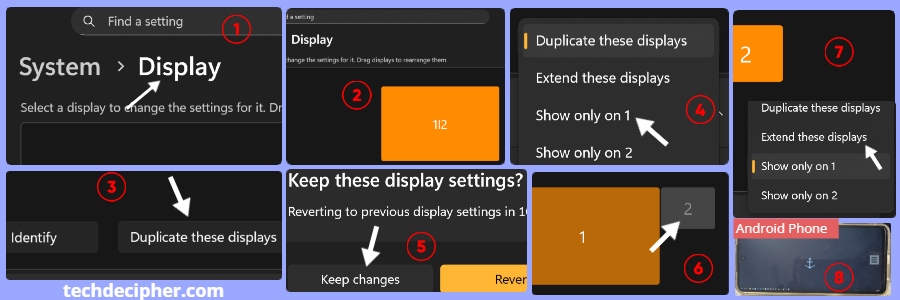
When your smartphone and PC/Laptop is showing exactly the same screen, it means it’s just mirroring it. We need to adjust the display settings in the PC/Laptop to make it work as to be used a second monitor. Go to settings > System > Display > there will be 2 displays showing, and a Default setting that says Duplicate these Displays. This is the main reason why both screens of your Laptop and Smartphone are showing the same screen.
This needs to be changed. Click on Show Only on 1 and keep changes. Then click on Second Display and expand the selector and choose Extend these displays, which will make your smartphone a second display.
Note: The app needs to be opened on a Laptop as well as on your Smartphone to show the mirroring or extend the display to use your smartphone as a second monitor.
Step 5) Final Adjustment
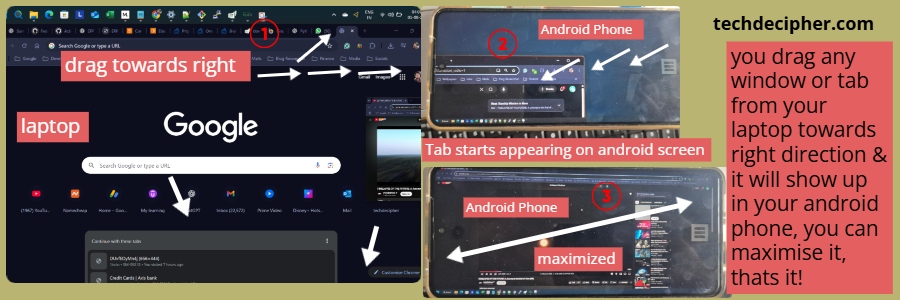
This is the last step you would need to take before you use your smartphone as a second monitor, you just have to drag whichever tab, file, or application to the right side until it is visible on your smartphone. Once you see it appearing on your smartphone, just adjust it according to your preference, and boom, now you can use your smartphone as your second monitor.
Tip: You can use Ctrl + Scroll up (mouse) to zoom in so it can be viewed properly on your smartphone.
Conclusion
Turning your smartphone into a second monitor isn’t just a cool trick—it’s genuinely useful. Whether you’re programming, designing, or even casually browsing while streaming your favorite show, a second display opens up endless productivity possibilities. This concludes how to use your smartphone as a second monitor. Would you try using your smartphone as a second monitor? Do let us know in the comments section below. A couple of years ago, I published a blog covering the best monitors. If you wish to know, check the blog here for more. If you need any help or have any suggestions to make, then do reach out via the contact page here. I also provide services to help you with your issues, which you can find here. Happy Tisha B’Av!
