
If you’ve ever stared at a browser saying “This site can’t be reached” after you were absolutely sure everything was configured correctly, then, you have probably met DNS. The funny thing is, DNS records sound boring. Dry. Infrastructure-level stuff. But the moment you manage a real website, deploy to the cloud, configure email, or connect a custom domain, DNS becomes very real, very fast. In this guide, I’m going to walk you through everything you need to know about DNS records in a way that actually makes sense.
In today’s post, we are going to check out what DNS is, how DNS works, what core types of DNS records you must know, What is a DNS propagation is, a real world example of DNS in Action and Tools to test the DNS records. Without further ado, let’s get started!
What is DNS?
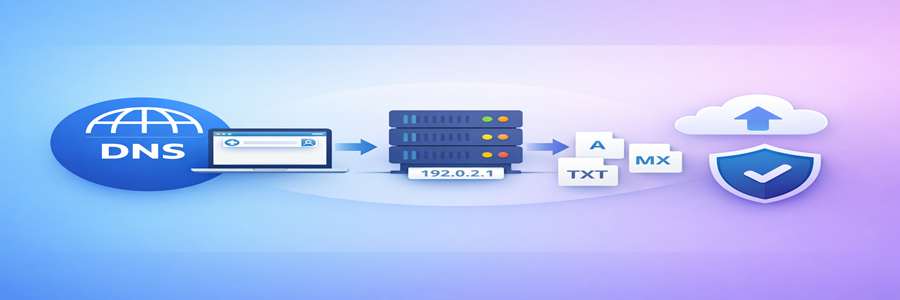
DNS stands for Domain Name System. But that phrase alone doesn’t help much, right? Here’s the simple version. DNS is the Internet’s phonebook. When you type a website address like techdecipher.com into your browser, your computer doesn’t understand that name. It understands IP addresses, strings of numbers like 192.0.2.1.
DNS translates human friendly domain names into machine friendly IP addresses. Without DNS, we’d all be memorizing numbers just to visit websites. And let’s be honest, nobody wants that. DNS is your contact list for the internet. But here’s the important part DNS doesn’t just store one piece of information. It stores different types of instructions. And those instructions are called DNS records.
How does DNS work?

Let’s walk through what happens behind the scenes. You type a domain name into your browser. Your browser asks your local DNS resolver (usually your ISP or a public DNS like Google’s 8.8.8.8), “Hey, where does this domain live?” If it doesn’t already know, it starts asking around the points below.
- Root servers
- TLD servers (.com, .net, etc.)
- Authoritative name servers
Eventually, it gets the correct IP address. Your browser connects to that IP. The website loads. All of this happens in milliseconds. You don’t see it. You just expect things to work. When they don’t? That’s usually DNS
What core types of DNS records must you know?
Now we get to the heart of everything you need to know about DNS records, the actual record types. Each DNS record is like a specific instruction. Here are the ones you’ll run into most often.
1. A Record (Address Record)

This is the most basic and important record. It connects a domain to an IPv4 address.
Example:
techdecipher.com → 203.0.113.1
When I moved one of my sites to a new hosting provider, all I had to do was update the A record. Simple change. Huge impact
2. AAAA Record

Same idea as the A record but for IPv6 addresses. Not every site uses IPv6 yet, but modern infrastructure increasingly supports it.
3. CNAME Record

CNAME stands for Canonical Name. Instead of pointing to an IP, it points to another domain.
Example:
Blog.techdecipher.com → techdecipher.hostingprovider.com
This is super useful for subdomains. One important tip, don’t mix CNAME with an A record on the same hostname. That’s a common mistake beginners make.
4. MX Record (Mail Exchange)
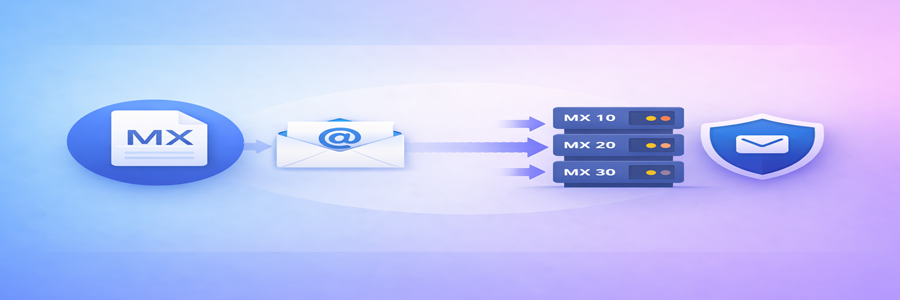
MX records control email delivery. If your email stops working after switching hosting providers, this is usually why. They specify as below
- Which mail server handles your email
- The priority of mail servers
I’ve seen people accidentally delete MX records and wonder why emails vanish. Always double-check before saving changes.
5. TXT Record

TXT records store text information. They’re commonly used for:
- SPF (email authentication)
- DKIM
- Domain verification
- Security configurations
They might look harmless, but they’re critical for email security.
6. NS Record (Name Server)

NS records define which servers are authoritative for your domain. When you change hosting providers entirely, you often update name servers instead of individual records. This is a bigger move and takes longer to propagate. This basically lets you manage your domain’s DNS records for other parties. Like purchased a domain from GoDaddy but have hosting from Namecheap, you update the name servers provided by Namecheap under your GoDaddy domain, and you can manage the domain DNS at Namecheap side.
What is a DNS propagation?
Ah yes. The mysterious “Wait 24–48 hours.” DNS propagation simply means the time it takes for DNS changes to update globally. When you change a DNS record, your DNS provider updates instantly, but the rest of the world updates gradually. This depends on:
- TTL (Time To Live)
- ISP caching
- Location
If you’ve ever thought why is it working on my phone but not on my laptop? That’s DNS caching. Because DNS is cached globally. Servers store DNS data temporarily based on something called TTL (Time to Live). If TTL is set to 24 hours, changes might take up to a day to fully reflect.
Practical Tip Before Making Changes
Before a big migration, do the following.
- Lower your TTL to 300 seconds (5 minutes)
- Wait a few hours
- Then make your changes.
This makes propagation much faster. I’ve used this trick during site migrations, and it saved me hours of downtime.
Real World Example of DNS in Action
Let me give you a realistic scenario. Imagine you’re launching a new WordPress site on a new hosting provider. Here’s what you’d typically do.
- Get your new server’s IP address.
- Log in to your domain registrar.
- Update your record to the new IP.
- Wait for propagation.
- Test the site.
Simple, right? But here’s where things get interesting. If you forget to do so, as below.
- Update MX records
- Adjust SPF records
- Check CNAMEs for subdomains
You might fix your website and accidentally break your email. That’s why DNS requires attention to detail. It’s not complicated, but it’s unforgiving.
Tools to test the DNS records
You don’t have to guess whether your DNS changes worked. Here are the tools I personally use.
1. WhatsMyDNS.net
Great for checking propagation worldwide. You can see how your DNS record resolves in different countries. Click here to go to the tool.
2. MXToolbox
Perfect for checking MX records, testing email configurations, and verifying SPF and DKIM. Check the MX lookup tool here.
3. Dig Command (Advanced Users)
If you’re comfortable with the command line and you are in a Linux box, you should try the following.
It gives detailed DNS information. I use this when I want a deeper look into what’s happening.
Conclusion
DNS records might seem small. They’re not flashy. They don’t have dashboards. They don’t look exciting in architecture diagrams. But they quietly hold the internet together. When DNS works, nobody notices. When it fails, everyone does. And when you know how to manage DNS confidently, you’re no longer just running a site, you’re running infrastructure. This concludes everything you need to know about DNS records. Have you ever faced a DNS issue that drove you crazy? Do let us know in the comments section below. In this AI era, you want to build websites faster because hiring a Developer and spending lots of money isn’t the trend! Check out here for more on how to do that. We have a collection of top class web tools baked right into Techdecipher.com. To go to the tools page, click here. If you need any help or have any suggestions to make, then do reach out via the contact page here. I also provide services to help you with your issues, which you can find here. Happy Language Day!
