
Gone are those days when developers had to write programs centered on the target machines where the program or application was to work. Technology like containers allows developers to test, build, and ship the code to any device or machine regardless of its architecture. Sounds like an advanced phase of software development, right? For anyone who wishes to practice this technology, we bring you a guide on how to install Docker in common Linux distributions.
In today’s post, we are going to check what a container is, the benefits of a Container, what is docker, and how to install Docker in Centos, Ubuntu, Rocky, and Alma Linux.
What is Container?
In earlier days, developers used to write codes, build programs and test those in their own environment or in the test servers. When the time comes to deploy the code or program initially built for production servers, it often fails at a glance. There could be many reasons for the failure, for example, lack of necessary services in production, or some under-the-hood reasons. Along with that, another challenge with direct program deployment was that it needed to have high resources, as let’s assume you are deploying 3 servers for 3 services in a project then the cost would go high for obvious reasons.
The solution to this challenge is containers. The term comes from Shipping containers, which can be shipped anywhere once placed in a cargo plane or ship. Containers provide the ability for developers to build, test, and deploy code irrespective of their operating system. With such ability, developers can almost build, test, and deploy code without worrying about it being a failure.
Benefits of Containers
Common benefits of containerization include.
- Consistent application environments across development and production
- Fast startup compared with full virtual machines
- Process and dependency isolation
- Repeatable builds and deployments
- Easier scaling and rollback
- Efficient use of server resources
- Portability across compatible hosts and cloud platforms
Containers do not automatically make an application secure. Images still need updates, secrets must be managed correctly, and containers should run with the minimum privileges they require.
What is Docker
Docker is a platform for building, distributing, and running containers. Docker Engine includes a background service called the Docker daemon and a command-line client named docker.

It is a technology that helps to create and manage Containers so that developers can fasten the process to code delivery, shipment, etc. This containerization can be achieved through Docker software which is developed by Docker, which is an American technology company. The initial release of Docker is March 20, 2013, and Docker is well-known containerization software present in the market today.
Before you install Docker
Before you install Docker, you would need following pre-requsites.
- A supported 64-bit Linux installation
- Internet access to Docker’s package repository
- A user with sudo access, or a root shell
- A backup and recovery plan for a production server
Check your distribution and version before continuing
uname -m
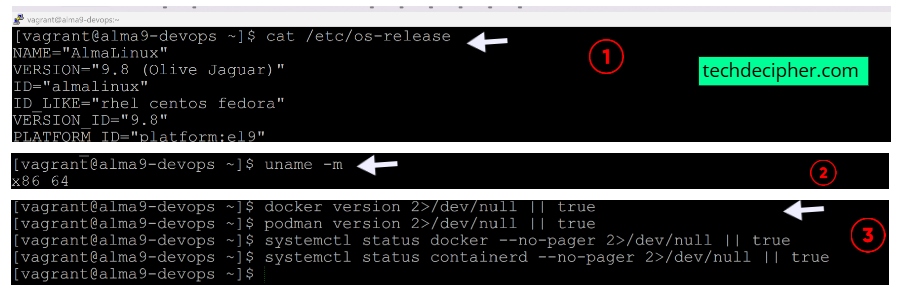
Do not blindly remove an existing container runtime from a production machine. First check whether Docker, Podman,
containerd, or Kubernetes is already using containers and images on the host.
podman version 2>/dev/null || true
systemctl status docker –no-pager 2>/dev/null || true
systemctl status containerd –no-pager 2>/dev/null || true
How to install Docker?
Just so you know, Docker is not supported in RHEL 8, and thus Red Hat came up with Podman. You may learn about it here which is native to Linux. We have gone through Containers and Dockers, lets’s check out how you can install Docker in your Local or Production servers to play along with the technology and engineer something.
1) Install Docker Engine on CentOS Stream 9
CentOS is one of the most stable and secure production OS available. Docker’s current CentOS instructions support maintained CentOS Stream 9 and CentOS Stream 10 releases. Though CentOS 7 has been famous, it has been discontinued. You can install Docker on CentOS Stream 9 by the following method.
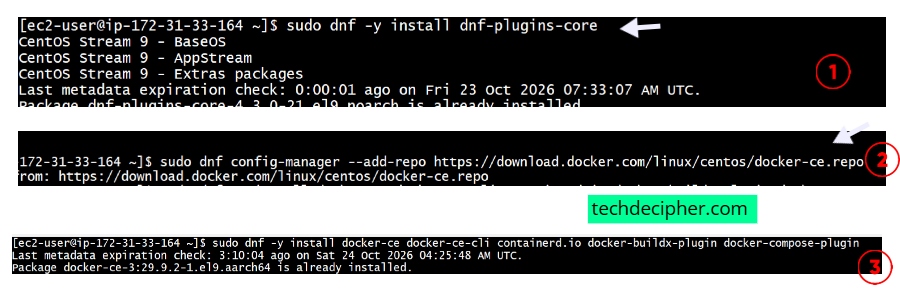
Step 1] Add Docker’s CentOS repository
sudo dnf config-manager –add-repo https://download.docker.com/linux/centos/docker-ce.repo
Step 2] Install Docker Engine and its plugins
Step 3] Start and verify Docker
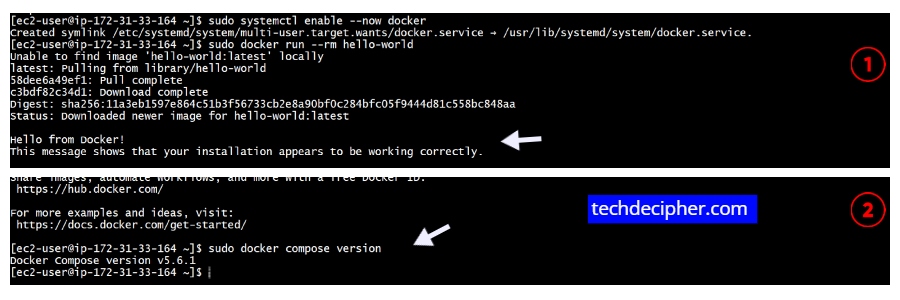
sudo docker run –rm hello-world
sudo docker compose version
2) Install Docker in Ubuntu
A Debian-based Linux distribution, Ubuntu, is well-known in the market. Ubuntu is very easy to use and understand, which is why it’s so popular. Ubuntu was released on 20 October 2004 by Canonical, which is a software company. We are installing Docker on Ubuntu 26.04.1 LTS.
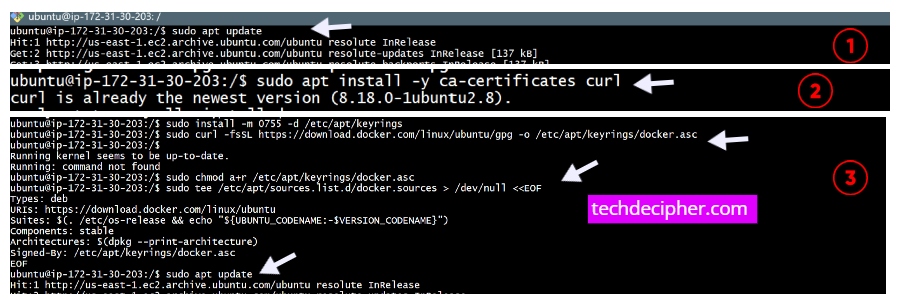
You can install Docker in the following way.
Step 1] Add Docker’s official signing key and repository
sudo apt install -y ca-certificates curl
sudo install -m 0755 -d /etc/apt/keyrings
sudo curl -fsSL https://download.docker.com/linux/ubuntu/gpg -o /etc/apt/keyrings/docker.asc
sudo chmod a+r /etc/apt/keyrings/docker.asc
Add Docker’s APT repository:
Types: deb
URIs: https://download.docker.com/linux/ubuntu
Suites: $(. /etc/os-release && echo “${UBUNTU_CODENAME:-$VERSION_CODENAME}”)
Components: stable
Architectures: $(dpkg –print-architecture)
Signed-By: /etc/apt/keyrings/docker.asc
EOF
Step 2] Install Docker Engine, Buildx, and Compose
Step 3] Verify the installation
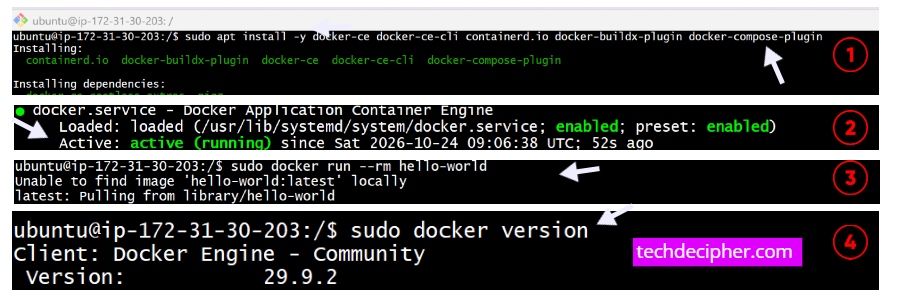
sudo docker run –rm hello-world
sudo docker version
sudo docker compose version
3) Install Docker in Rocky 9
A Linux distribution coming straight from Rocky Enterprise Software Foundation, Rocky Linux is getting its spot in the market. Rocky Linux is developed in response to the sad end of the life of centOS which is now been upgraded to the centOS stream. We are using Rocky Linux version 9 for this tutorial. Docker does not list Rocky Linux as a directly tested platform in its installation matrix, but Rocky Linux documentation provides a Docker Engine procedure using Docker’s
RHEL repository.
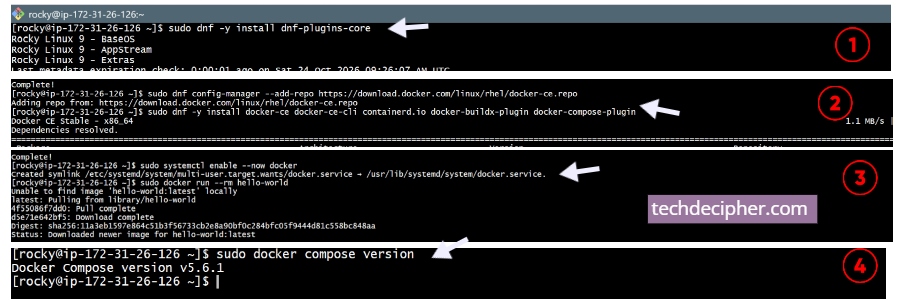
Step 1] Add Docker’s RHEL repository
sudo dnf config-manager –add-repo https://download.docker.com/linux/rhel/docker-ce.repo
Step 2] Install, start, and verify Docker
sudo systemctl enable –now docker
sudo docker run –rm hello-world
sudo docker compose version
4) Install Docker in Alma 9
CloudLinux, Inc. brings Alma Linux. Alma aims to provide a similar vibe to CentOS. This distribution is initially released on 30 March 2021. Alma is considered to be the most stable distro based on RHEL. We are installing Docker on Alma 9 version, the installation steps are very similar to Rocky. Add the repo, install, and start the service.
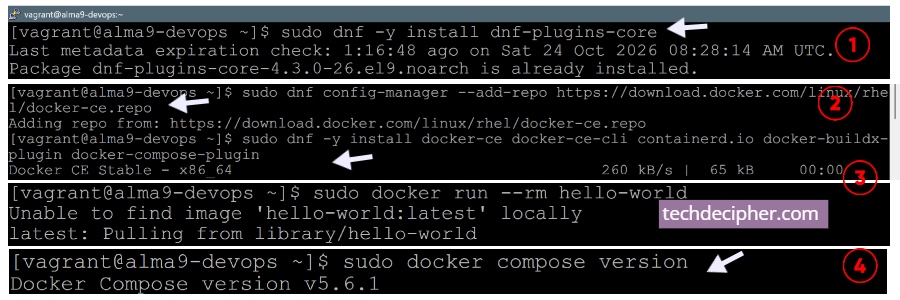
Step 1] Add the Docker repository
sudo dnf config-manager –add-repo https://download.docker.com/linux/rhel/docker-ce.repo
Step 2] Install, start, and verify Docker
sudo systemctl enable –now docker
sudo docker run –rm hello-world
sudo docker compose version
Note:– Once you have installed Docker on your favorite Linux distribution, please do not forget the post-installation steps here. We are using all the mentioned commands through a root user. If you are trying to install and have sudo access, add sudo before every command you run.
How to update Docker Engine
On Ubuntu, refresh the package index and upgrade the installed Docker packages
sudo apt install –only-upgrade docker-ce docker-ce-cli containerd.io docker-buildx-plugin docker-compose-plugin
On CentOS Stream, Rocky Linux, or AlmaLinux, use:
Frequently asked questions
Is Docker supported on CentOS 7?
Is Docker officially supported on Rocky Linux and AlmaLinux??
Should I use Docker or Podman??
Conclusion
There will always be new ways to solve issues in the field of Software development, how the new technology better adopts it and optimizes existing techniques is what makes that technique a game changer. Developers are always keen to adopt such technologies. This concludes about how to install docker in common Linux distributions! What docker installation method or step has helped you? do let us know in the comments section below. If you need any help or have any suggestions to make, do reach us via the contact page here. Happy Earth Hour!

Good work bro